---
title: How to Accept a Payment
description: "Please see the video or follow the below steps in 5 minutes or less to deposit funds sent to your email address. Accepting payments sent via email: Step 1: The recipient will receive an email fr"
---
[Skip to content](https://help.veem.com/hc/en-us/articles/360033434174-how-to-accept-a-payment-#main-content)
English
Show submenu for translations
[Customer portal](https://help.veem.com/tickets-view?hsLang=en)
[](https://www.veem.com/)
Open main navigation
Close main navigation
- English
Show submenu for translations
- [Customer portal](https://help.veem.com/tickets-view)
- [Contact us](https://www.veem.com/contact/)
[Contact us](https://www.veem.com/contact/)
How can we help you?
- There are no suggestions because the search field is empty.
1. [Help Center](https://help.veem.com/?hsLang=en)
2. [Receiving Payments](https://help.veem.com/receiving-payments?hsLang=en)
3. [Get Paid with Veem](https://help.veem.com/receiving-payments?hsLang=en#get-paid-with-veem)
# How to Accept a Payment
Please see the video or follow the below steps in 5 minutes or less to deposit funds sent to your email address.
****
**Accepting payments sent via email:**
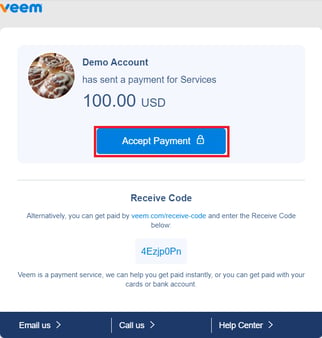
**Step 1:** The recipient will receive an email from Veem informing them about this payment. From the email, please select "***Accept Payment**"* to access your custom claim page.
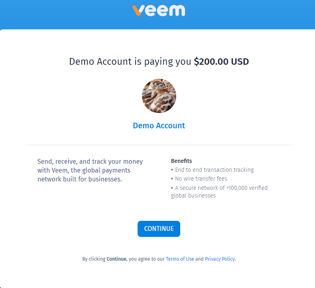
**Step 2:** On the next page, you'll see the payment details, click "***Continue***".
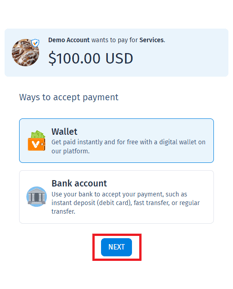
**Step 3:** The next part will require you to select your receiving method. Select the preferred receiving method and click "***Next***".
**Step 4:** Clients that selected a bank account or instant deposit (debit card) will be prompted to add their banking/card details. Add the required information accurately and click "***Next***"
- You'll have the option to add your banking details, either through our [express sign-up](https://help.veem.com/hc/en-us/articles/360046480634-what-is-plaid-and-how-does-it-work-with-veem-?hsLang=en) or by manually entering your banking information.
**Step 5:** Next, please select the account type, depending on whether you are a business or an individual. This will alter the information required to validate your account with our risk team.
- For [business](https://help.veem.com/hc/en-us/articles/7050645903379-getting-started-business-account-information?hsLang=en) account types, please enter the Business Information Including:
- Business Name
- Phone Number
- Address
- Business Type
- Industry and Sub Industry
- Primary Contact Name
- Tax ID Number
- For [individual/personal](https://help.veem.com/hc/en-us/articles/360063119133-how-to-create-an-individual-account?hsLang=en) account types, please enter your personal Information Including:
- Legal First Name
- Legal Last Name
- Date of Birth
- Last 4 digits of your SSN
- ***Note:** This information may differ based on the country you're in.*
- Phone Number
**Steps 6 & 7:** Complete additional information to help identify your business like website and business size (If any).
**Step 8:** Review the details and confirm that they're all accurate.
**Step 9:** Select "***Next**"*.
That's it! The payment has been accepted and will be processed after the verification process is done!
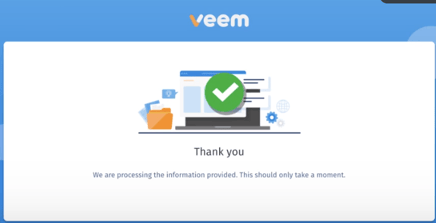
**Step 10: (Optional)** You can opt to activate your Veem account for easiness in tracking payments and updating account information and accessing more of Veem's features. To do this, create a password. (**Note:** Your password must contain an uppercase, lowercase, number, and special character)
- After creating your password, click on the button "***sign-in***" to activate your account. You'll be redirected to the dashboard page after that.
**NOTE**: The receiving currency is automatically set as the receiver's country's local currency when the payment is submitted.
Still need help? [You can chat or call our Customer Success team here.](https://www.veem.com/contact/)
- [Product Updates](https://help.veem.com/product-updates?hsLang=en#main-content)
- [Changes to Veem Account | October 2026](https://help.veem.com/product-updates?hsLang=en#changes-to-veem-account-october-2026)
- [Changes to Veem Account | September 2026](https://help.veem.com/product-updates?hsLang=en#changes-to-veem-account-september-2026)
- [Changes to Veem Account | August 2026](https://help.veem.com/product-updates?hsLang=en#changes-to-veem-account-august-2026)
- [Changes to Veem Account | July 2026](https://help.veem.com/product-updates?hsLang=en#changes-to-veem-account-july-2026)
- [Changes to Veem Account | April 2026](https://help.veem.com/product-updates?hsLang=en#changes-to-veem-account-april-2026)
- [Changes to Veem Account | January 2026](https://help.veem.com/product-updates?hsLang=en#changes-to-veem-account-january-2026)
- [Changes to Veem Account | October 2025](https://help.veem.com/product-updates?hsLang=en#changes-to-veem-account-october-2025)
- [Changes to Veem Account | May 2025](https://help.veem.com/product-updates?hsLang=en#changes-to-veem-account-may-2025)
- [Changes to Veem Account | April 2025](https://help.veem.com/product-updates?hsLang=en#changes-to-veem-account-april-2025)
- [Changes to Veem Account | January 2025](https://help.veem.com/product-updates?hsLang=en#changes-to-veem-account-january-2025)
- [Changes to Veem Account | December 2024](https://help.veem.com/product-updates?hsLang=en#changes-to-veem-account-december-2024)
- [Changes to Veem account | September 2024](https://help.veem.com/product-updates?hsLang=en#changes-to-veem-account-september-2024)
- [Changes to Veem account | July 2024](https://help.veem.com/product-updates?hsLang=en#changes-to-veem-account-july-2024)
- [Changes to Veem account | August 2023](https://help.veem.com/product-updates?hsLang=en#changes-to-veem-account-august-2023)
- [Changes to Veem account | January 2023](https://help.veem.com/product-updates?hsLang=en#changes-to-veem-account-january-2023)
- [Changes to Veem account | July 2022](https://help.veem.com/product-updates?hsLang=en#changes-to-veem-account-july-2022)
- [Changes to Veem account | June 2022](https://help.veem.com/product-updates?hsLang=en#changes-to-veem-account-june-2022)
- [Changes to Veem account | May 2022](https://help.veem.com/product-updates?hsLang=en#changes-to-veem-account-may-2022)
- [Veem Wallet](https://help.veem.com/veem-wallet?hsLang=en)
- [Virtual Bank Account](https://help.veem.com/virtual-bank-account?hsLang=en)
- [Veem Virtual Card](https://help.veem.com/veem-virtual-card?hsLang=en)
- [Security and Compliance](https://help.veem.com/security-and-compliance?hsLang=en)
- [Accountant and Bookkeepers](https://help.veem.com/accountant-and-bookkeepers?hsLang=en)
- [Getting Started for Business](https://help.veem.com/getting-started-for-business?hsLang=en#main-content)
- [Getting Started - Business Account](https://help.veem.com/getting-started-for-business?hsLang=en#getting-started-business-account)
- [Getting Started for Contractors](https://help.veem.com/getting-started-for-contractors?hsLang=en#main-content)
- [Getting Started - Individuals, Contractors and Sole Proprietorship accounts](https://help.veem.com/getting-started-for-contractors?hsLang=en#getting-started-individuals-contractors-and-sole-proprietorship-accounts)
- [Veem Integrations](https://help.veem.com/veem-integrations?hsLang=en#main-content)
- [Xero](https://help.veem.com/veem-integrations?hsLang=en#xero)
- [Zapier](https://help.veem.com/veem-integrations?hsLang=en#zapier)
- [Integrations FAQ](https://help.veem.com/veem-integrations?hsLang=en#integrations-faq)
- [Netsuite](https://help.veem.com/veem-integrations?hsLang=en#netsuite)
- [QuickBooks](https://help.veem.com/veem-integrations?hsLang=en#quickbooks)
- [Signing Up on Veem](https://help.veem.com/signing-up-on-veem?hsLang=en)
- [Account Management](https://help.veem.com/account-management?hsLang=en#main-content)
- [Manage your Veem Account](https://help.veem.com/account-management?hsLang=en#manage-your-veem-account)
- [Updating Banking Information](https://help.veem.com/account-management?hsLang=en#updating-banking-information)
- [Updating the Account](https://help.veem.com/account-management?hsLang=en#updating-the-account)
- [Beneficial Ownership Information](https://help.veem.com/account-management?hsLang=en#beneficial-ownership-information)
- [Veem Basics FAQ](https://help.veem.com/veem-basics-faq?hsLang=en)
- [Sending Payments](https://help.veem.com/sending-payments?hsLang=en#main-content)
- [Payment Tracker](https://help.veem.com/sending-payments?hsLang=en#payment-tracker)
- [Mass Pay](https://help.veem.com/sending-payments?hsLang=en#mass-pay)
- [Payments FAQ](https://help.veem.com/sending-payments?hsLang=en#payments-faq)
- [Pay Direct](https://help.veem.com/sending-payments?hsLang=en#pay-direct)
- [Guest Pay](https://help.veem.com/sending-payments?hsLang=en#guest-pay)
- [Pay with Credit Card or Debit Card](https://help.veem.com/sending-payments?hsLang=en#pay-with-credit-card-or-debit-card)
- [Pay with Veem](https://help.veem.com/sending-payments?hsLang=en#pay-with-veem)
- [Receiving Payments](https://help.veem.com/receiving-payments?hsLang=en#main-content)
- [Get Paid with Veem](https://help.veem.com/receiving-payments?hsLang=en#get-paid-with-veem)
- [Instant Deposit - Debit Card](https://help.veem.com/receiving-payments?hsLang=en#instant-deposit-debit-card)
- [Payment Troubleshooting](https://help.veem.com/payment-troubleshooting?hsLang=en#main-content)
- [Bank Information Tips & Updates](https://help.veem.com/payment-troubleshooting?hsLang=en#bank-information-tips-updates)
- [Payment Troubleshooting FAQs](https://help.veem.com/payment-troubleshooting?hsLang=en#payment-troubleshooting-faqs)
- [How - To Videos](https://help.veem.com/how-to-videos?hsLang=en)
- [Payment Tracker Statuses](https://help.veem.com/payment-tracker-statuses?hsLang=en)
[](http://www.veem.com/https://www.veem.com/?utm_source=hubspot&utm_medium=email&utm_campaign=email_marketing)
1160 Battery Street,
Suite 100
San Francisco, CA 94111
Copyright © 2026, Veem Inc