---
title: How to Respond to a Payment Request Email
description: When a user sends you an invoice (payment request) through Veem to your email inbox, Veem makes it easy to quickly claim and pay the invoice.
---
[Skip to content](https://help.veem.com/hc/en-us/articles/360035442414-how-to-respond-to-a-payment-request-email#main-content)
English
Show submenu for translations
[Customer portal](https://help.veem.com/tickets-view?hsLang=en)
[](https://www.veem.com/)
Open main navigation
Close main navigation
- English
Show submenu for translations
- [Customer portal](https://help.veem.com/tickets-view)
- [Contact us](https://www.veem.com/contact/)
[Contact us](https://www.veem.com/contact/)
How can we help you?
- There are no suggestions because the search field is empty.
1. [Help Center](https://help.veem.com/?hsLang=en)
2. [Sending Payments](https://help.veem.com/sending-payments?hsLang=en)
3. [Pay with Veem](https://help.veem.com/sending-payments?hsLang=en#pay-with-veem)
# How to Respond to a Payment Request Email
## When a user sends you an invoice (payment request) through Veem to your email inbox, Veem makes it easy to quickly claim and pay the invoice.
To pay an invoice (payment request) on Veem via email notification, please watch the video or follow the steps below:
**Step 1:** You will receive an email notification with the subject line:
**"*Payment Request by \[sender's name\] due by \[due date of invoice\]"***
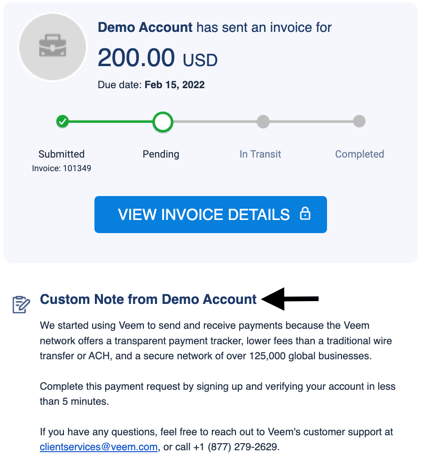
**Step 2:** Please start by opening the invoice email. It will look like the screenshot below. If your receiver entered a personalized note while creating the invoice, you can view it in the **"Custom Note"** section.
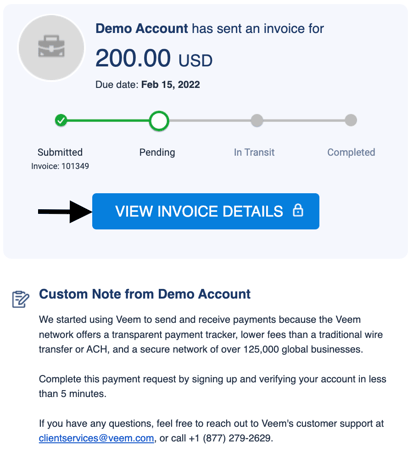
**Step 3:** Click **"View Invoice Details"**
**Step 4:** You will be taken to a screen where you can see the request and invoice details and download a PDF of the invoice. To download the invoice, click the blue link under **"Attachments**."
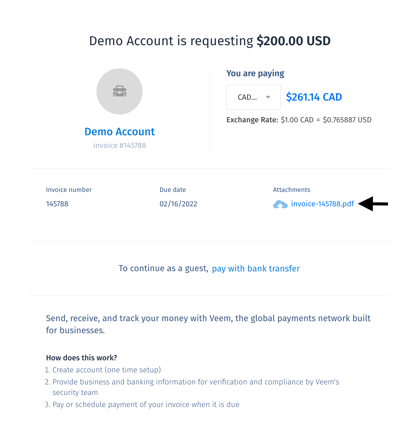
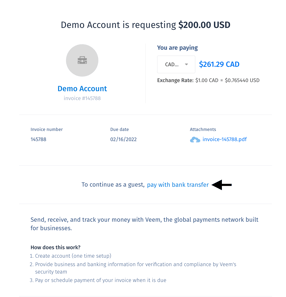
**Step 5:** If you still need to get a Veem account, you will see 2 options: Pay on Veem or Guest Pay.
***\* Note: If you already have a Veem account, please continue to Step 6.***
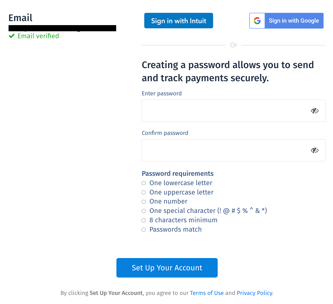
- Option 1: If you want to pay through Veem, you can set up an account now. [Click here for a complete overview of how to sign up with Veem.](https://help.veem.com/signing-up-on-veem?hsLang=en)
- Option 2: If you would like to pay the invoice with Guest Pay via a bank transfer, please click [here](https://help.veem.com/hc/en-us/articles/4416826928275-how-to-pay-an-invoice-as-a-guest-guest-pay-?hsLang=en).
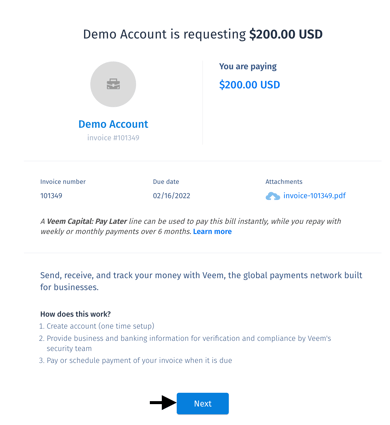
**Step 6:** Click **"Next"**.
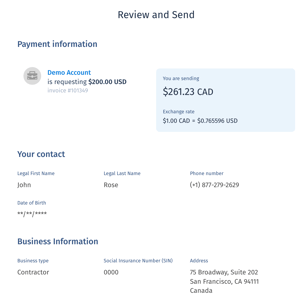
**Step 7:** You will now see the **"Review and Send"** screen, which includes additional invoice details. If everything looks correct, please scroll down to select your funding method.
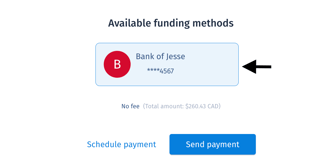
**Step 8:** If you would like to schedule your payment for a later date, please do so now by clicking the **"Schedule payment"** button. Otherwise, please click **"Send payment**."
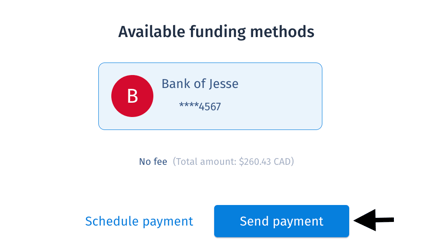
And that's it! You have successfully paid an invoice (payment request) via the email notification from Veem.
To learn how to pay an invoice directly from your Veem account, please click [here](https://help.veem.com/hc/en-us/articles/4428507127187-how-to-pay-an-invoice?hsLang=en).
Still need help? [You can chat or call our Customer Success team here.](https://www.veem.com/contact/)
- [Product Updates](https://help.veem.com/product-updates?hsLang=en#main-content)
- [Changes to Veem Account | October 2026](https://help.veem.com/product-updates?hsLang=en#changes-to-veem-account-october-2026)
- [Changes to Veem Account | September 2026](https://help.veem.com/product-updates?hsLang=en#changes-to-veem-account-september-2026)
- [Changes to Veem Account | August 2026](https://help.veem.com/product-updates?hsLang=en#changes-to-veem-account-august-2026)
- [Changes to Veem Account | July 2026](https://help.veem.com/product-updates?hsLang=en#changes-to-veem-account-july-2026)
- [Changes to Veem Account | April 2026](https://help.veem.com/product-updates?hsLang=en#changes-to-veem-account-april-2026)
- [Changes to Veem Account | January 2026](https://help.veem.com/product-updates?hsLang=en#changes-to-veem-account-january-2026)
- [Changes to Veem Account | October 2025](https://help.veem.com/product-updates?hsLang=en#changes-to-veem-account-october-2025)
- [Changes to Veem Account | May 2025](https://help.veem.com/product-updates?hsLang=en#changes-to-veem-account-may-2025)
- [Changes to Veem Account | April 2025](https://help.veem.com/product-updates?hsLang=en#changes-to-veem-account-april-2025)
- [Changes to Veem Account | January 2025](https://help.veem.com/product-updates?hsLang=en#changes-to-veem-account-january-2025)
- [Changes to Veem Account | December 2024](https://help.veem.com/product-updates?hsLang=en#changes-to-veem-account-december-2024)
- [Changes to Veem account | September 2024](https://help.veem.com/product-updates?hsLang=en#changes-to-veem-account-september-2024)
- [Changes to Veem account | July 2024](https://help.veem.com/product-updates?hsLang=en#changes-to-veem-account-july-2024)
- [Changes to Veem account | August 2023](https://help.veem.com/product-updates?hsLang=en#changes-to-veem-account-august-2023)
- [Changes to Veem account | January 2023](https://help.veem.com/product-updates?hsLang=en#changes-to-veem-account-january-2023)
- [Changes to Veem account | July 2022](https://help.veem.com/product-updates?hsLang=en#changes-to-veem-account-july-2022)
- [Changes to Veem account | June 2022](https://help.veem.com/product-updates?hsLang=en#changes-to-veem-account-june-2022)
- [Changes to Veem account | May 2022](https://help.veem.com/product-updates?hsLang=en#changes-to-veem-account-may-2022)
- [Veem Wallet](https://help.veem.com/veem-wallet?hsLang=en)
- [Virtual Bank Account](https://help.veem.com/virtual-bank-account?hsLang=en)
- [Veem Virtual Card](https://help.veem.com/veem-virtual-card?hsLang=en)
- [Security and Compliance](https://help.veem.com/security-and-compliance?hsLang=en)
- [Accountant and Bookkeepers](https://help.veem.com/accountant-and-bookkeepers?hsLang=en)
- [Getting Started for Business](https://help.veem.com/getting-started-for-business?hsLang=en#main-content)
- [Getting Started - Business Account](https://help.veem.com/getting-started-for-business?hsLang=en#getting-started-business-account)
- [Getting Started for Contractors](https://help.veem.com/getting-started-for-contractors?hsLang=en#main-content)
- [Getting Started - Individuals, Contractors and Sole Proprietorship accounts](https://help.veem.com/getting-started-for-contractors?hsLang=en#getting-started-individuals-contractors-and-sole-proprietorship-accounts)
- [Veem Integrations](https://help.veem.com/veem-integrations?hsLang=en#main-content)
- [Xero](https://help.veem.com/veem-integrations?hsLang=en#xero)
- [Zapier](https://help.veem.com/veem-integrations?hsLang=en#zapier)
- [Integrations FAQ](https://help.veem.com/veem-integrations?hsLang=en#integrations-faq)
- [Netsuite](https://help.veem.com/veem-integrations?hsLang=en#netsuite)
- [QuickBooks](https://help.veem.com/veem-integrations?hsLang=en#quickbooks)
- [Signing Up on Veem](https://help.veem.com/signing-up-on-veem?hsLang=en)
- [Account Management](https://help.veem.com/account-management?hsLang=en#main-content)
- [Manage your Veem Account](https://help.veem.com/account-management?hsLang=en#manage-your-veem-account)
- [Updating Banking Information](https://help.veem.com/account-management?hsLang=en#updating-banking-information)
- [Updating the Account](https://help.veem.com/account-management?hsLang=en#updating-the-account)
- [Beneficial Ownership Information](https://help.veem.com/account-management?hsLang=en#beneficial-ownership-information)
- [Veem Basics FAQ](https://help.veem.com/veem-basics-faq?hsLang=en)
- [Sending Payments](https://help.veem.com/sending-payments?hsLang=en#main-content)
- [Payment Tracker](https://help.veem.com/sending-payments?hsLang=en#payment-tracker)
- [Mass Pay](https://help.veem.com/sending-payments?hsLang=en#mass-pay)
- [Payments FAQ](https://help.veem.com/sending-payments?hsLang=en#payments-faq)
- [Pay Direct](https://help.veem.com/sending-payments?hsLang=en#pay-direct)
- [Guest Pay](https://help.veem.com/sending-payments?hsLang=en#guest-pay)
- [Pay with Credit Card or Debit Card](https://help.veem.com/sending-payments?hsLang=en#pay-with-credit-card-or-debit-card)
- [Pay with Veem](https://help.veem.com/sending-payments?hsLang=en#pay-with-veem)
- [Receiving Payments](https://help.veem.com/receiving-payments?hsLang=en#main-content)
- [Get Paid with Veem](https://help.veem.com/receiving-payments?hsLang=en#get-paid-with-veem)
- [Instant Deposit - Debit Card](https://help.veem.com/receiving-payments?hsLang=en#instant-deposit-debit-card)
- [Payment Troubleshooting](https://help.veem.com/payment-troubleshooting?hsLang=en#main-content)
- [Bank Information Tips & Updates](https://help.veem.com/payment-troubleshooting?hsLang=en#bank-information-tips-updates)
- [Payment Troubleshooting FAQs](https://help.veem.com/payment-troubleshooting?hsLang=en#payment-troubleshooting-faqs)
- [How - To Videos](https://help.veem.com/how-to-videos?hsLang=en)
- [Payment Tracker Statuses](https://help.veem.com/payment-tracker-statuses?hsLang=en)
[](http://www.veem.com/https://www.veem.com/?utm_source=hubspot&utm_medium=email&utm_campaign=email_marketing)
1160 Battery Street,
Suite 100
San Francisco, CA 94111
Copyright © 2026, Veem Inc